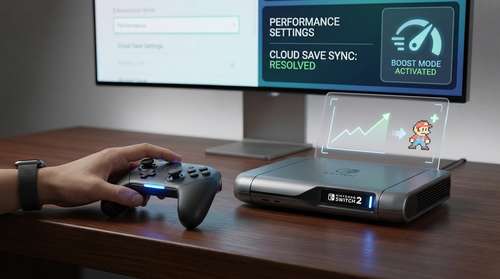
Following the highly anticipated late March release of system update 22.0.0, players are finally unlocking the full potential of their next-generation consoles. If you have been searching for a definitive Switch 2 Boost Mode guide, you are in the exact right place. Nintendo has quietly integrated a game-changing "Handheld Mode Boost" toggle that forces legacy titles to run as if they were in docked TV mode while you play completely on the go. However, this incredible visual upgrade has arrived alongside some frustrating cloud sync errors for gamers transitioning between system generations. Whether you want to sharpen your portable graphics or resolve annoying synchronization bugs, these seven essential Nintendo Switch 2 tips will dramatically elevate your experience and provide a permanent Switch 2 save data fix.
Mastering the New Switch 2 Performance Settings
The latest Nintendo Switch 2 update 2026 fundamentally changes how the hardware handles last-generation software. Unlike previous firmware iterations, this patch allows players to push the system's integrated Nvidia processor much harder during portable play. Activating these tweaks properly will breathe new life into your existing library, but it requires a bit of manual menu navigation.
1. How to Enable Handheld Mode Boost
Hidden deep within the menus is the holy grail of Switch 2 backwards compatibility. To force older games to render at higher resolutions on the sharp 1080p portable screen, press the Home button and navigate to System Settings. Scroll down to the System tab, locate the newly added Nintendo Switch Software Handling sub-menu, and toggle Handheld Mode Boost to the "On" position. This immediately forces older games to utilize the original Switch's docked performance profile while completely undocked, bridging the gap between generations.
2. Target the Right Legacy Games
Not all games are created equal under the new hardware upgrade. Based on recent digital performance testing, titles that were originally capped at a murky 720p in portable mode see the most dramatic enhancements. Fan favorites like Mario Kart 8 Deluxe and Luigi's Mansion 3 map flawlessly to the new 1080p display, effectively doubling the GPU performance compared to original hardware. Persona 5 Royal also sees a massive bump, upgrading from a notoriously blurry 540p up to a remarkably crisp 900p on the portable screen.
3. Know When to Disable Boost Mode
While an increased resolution is fantastic for visual clarity, it can occasionally tank the framerate in poorly optimized titles. You will want to adjust your Switch 2 performance settings dynamically. For example, heavily demanding backwards-compatible ports like Ni no Kuni 2 and Darksiders 3 can experience jarring frame drops down to 30fps with the boost turned on. If a game feels sluggish or unresponsive during intensive combat sequences, simply head back into the System Software Handling menu and temporarily disable the boost feature.
4. Monitor Your Battery Drain and Touch Controls
One of the most requested Nintendo Switch 2 hidden features comes with an inevitable hardware cost: battery life. Community battery tests highlight that running standard Switch 1 games on the new hardware can yield over 5 hours of playtime, but enabling Handheld Boost Mode can slice that metric down to roughly 3 hours and 43 minutes. Additionally, because the system thinks it is operating in TV mode, forcing this docked profile will completely disable touch screen functionality in specific titles. Keep a high-capacity power bank handy and stick to standard Joy-Con inputs when maxing out your graphics.
Resolving Switch 2 Backwards Compatibility and Save Issues
Experiencing your classic games in high fidelity is only half the battle. The transition between hardware generations has left many early adopters staring at annoying save data conflicts. Here is how to ensure your progress makes the leap safely without losing hundreds of hours of gameplay.
5. Fix Nintendo Switch Online Cloud Conflicts
If you are jumping back and forth between an original Switch and a Switch 2, your saves might easily fall out of sync due to localized server errors. To implement a quick Switch 2 save data fix, navigate to System Settings > Data Management > Save Data Cloud. Look for any software displaying a red error status. You must manually select the conflicted user profile and choose whether to "Download Save Data" from the server or "Back Up Save Data" from the console to override the cloud. Always verify the specific date and time stamps before confirming to avoid accidentally overwriting your most recent RPG progress.
6. Utilize Local Data Transfer for Stubborn Files
Not every legacy game supports the Nintendo Switch Online cloud infrastructure—most notably mainline Pokémon titles. If the cloud fails or is unavailable, bypass the network entirely using local communication. Place both consoles physically next to each other, head to Data Management, and select Transfer Your Save Data. Choose "Send Save Data to Another Console" on the original hardware, and select "Receive Save Data" on your new system. Remember that receiving data will instantly overwrite any existing local progress on the destination device, so handle with care.
7. Upgrade to a MicroSD Express Card
A major caveat of the new backwards compatibility ecosystem is strict storage formatting. You cannot simply slot your old Switch 1 microSD card into the new console and expect it to run software. The newer hardware exclusively utilizes MicroSD Express technology to guarantee faster asset loading. While crucial save files are always stored directly on the internal system memory, utilizing a certified MicroSD Express card ensures that downloaded legacy titles load fast enough to keep pace with the active Handheld Boost Mode. You can transfer your old screenshots to the console storage via the local system transfer tool, then format a fresh Express card to properly manage your digital library.
By mastering these dynamic display toggles and essential data management tricks, you can seamlessly bridge the gap between console generations and experience your classic gaming library exactly as it was meant to be played.