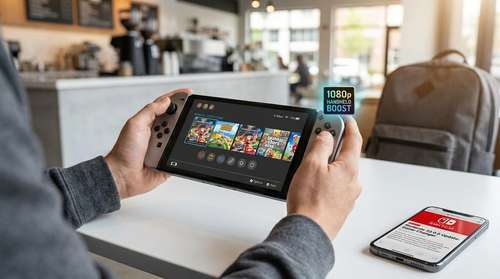
Nintendo has quietly revolutionized backward compatibility on its newest hardware. Tucked away inside the patch notes for Nintendo Switch update 22.0.0 is a phenomenal feature that transforms how legacy titles look and play on the go. For players hunting for the best Nintendo Switch 2 tips and tricks, the addition of 'Handheld Mode Boost' is easily the most significant software development since the console's launch. This new toggle pushes the hardware to run original Switch games at their docked-level performance profiles while fully undocked, finally making use of that crisp 1080p display for your entire gaming library.
How to Enable Handheld Mode Boost Settings
Navigating the new system menus can be slightly unintuitive if you don't know exactly where to look. To trigger this massive graphical bump, you will need to dig into the system settings.
Here is the straightforward method to activate the feature:
- Boot up your console and select System Settings from the HOME menu.
- Scroll all the way down to the System tab.
- Locate the newly added Nintendo Switch Software Handling option.
- Click Handheld Mode Boost to toggle the setting on.
Once enabled, this Switch 2 performance optimization forces older, compatible software to run as if the console were sitting safely in its dock connected to your television. Instead of enduring 720p resolutions stretched across a 1080p screen, titles like Luigi's Mansion 3 and Mario Kart 8 Deluxe now render at native 1080p. Performance metrics reveal massive gains across the board. Persona 5 Royal, which infamously ran at a blurry 510p on the original hardware in handheld mode, now scales beautifully to 810p, while titles like Resident Evil 5 hold a rock-solid 60 frames per second.
The Trade-Offs: How to Speed Up Nintendo Switch 2 Smartly
While the visual leap is undeniable, achieving TV-mode frame rates in the palm of your hands comes with specific technical trade-offs. If you want to know how to speed up Nintendo Switch 2 gameplay effectively, you also need to understand the limitations Nintendo implemented to make this work.
Because the system is essentially tricking the software into believing it is docked, certain handheld-specific functionalities are disabled outright. Touch screen controls will cease to function entirely, which impacts a handful of specialized titles. Furthermore, the attached Joy-Con 2 controllers will be universally registered as a single Nintendo Switch 2 Pro Controller. If you want to play multiplayer tabletop using detached controllers, you must physically detach them from the rails before booting up the game.
Switch 2 Battery Health Tips and the 85% Charging Cap
Pushing advanced lighting, improved anti-aliasing, and higher resolutions on mobile draws significantly more power. Consequently, players utilizing Handheld Mode Boost will watch their battery drain at a noticeably faster rate. Proper power management is now more critical than ever.
To combat long-term battery degradation caused by frequent, aggressive charging cycles, Nintendo introduced a brilliant mitigation tool alongside this firmware. In the settings menu, you can toggle a strict charging limit. While the system labels it 'Stop Charging Around 90%', extensive community testing confirms this frequently acts as an 84-86% charging cap. Some users have reported the battery percentage looking slightly inaccurate right after updating, but the console is actively preventing the battery cells from experiencing the stress of a maximum charge.
For optimal longevity, keep this setting engaged. It acts as one of the best Switch 2 battery health tips available right now, providing a massive boost to the overall lifespan of the console's internal lithium-ion battery. You can safely keep the console tethered to a portable power bank during heavy 1080p gaming sessions without frying the internal components.
Beyond Mobile: Maximizing Your TV Setup
Handheld Mode Boost solves the mobile visual dilemma, but getting the absolute most out of the hardware requires looking at your entire gaming setup. While this guide focuses heavily on portable play, users searching for a comprehensive Switch 2 120Hz output guide will find similar hidden toggles in the TV Settings menu to maximize fidelity.
By navigating to the Display options and activating Auto Low-Latency Mode (ALLM), the console will automatically force your television into Game Mode. Combine this with the new 'Always On' HDR settings introduced in recent updates, and you secure flawlessly smooth, vibrant performance when docked.
Update 22.0.0 proves Nintendo is actively listening to its community. By giving players granular control over their Switch 2 performance optimization, nobody has to compromise on visual fidelity when leaving the living room. Dive into your settings, toggle the boost, and experience your classic library exactly the way it was meant to be played.