The clock is ticking for early adopters of Nintendo's latest hardware. When the console launched last June, fans were treated to a generous 'Welcome Offer' allowing free access to the highly anticipated GameChat system. However, the official Nintendo Switch Online March 2026 deadline strikes in just two days on Tuesday, March 31. After this date, players will need an active membership to keep using these social features. If you want to make the most of your hardware before and after the cutoff, we have compiled the essential Nintendo Switch 2 tips and tricks. From configuring your audio-visual setup to mastering the social hub, here is everything you need to know.
Navigating the Nintendo Switch 2 Subscription Transition
As we approach the end of the month, understanding the impending Nintendo Switch 2 subscription transition is vital. Since June 2025, anyone could press the new 'C' button on their magnetic Joy-Con 2 or Pro Controller 2 to instantly launch voice and video chats. Starting April 1, 2026, this hub moves behind the standard Nintendo Switch Online paywall. Thankfully, Nintendo has confirmed that you only need the base tier membership rather than the pricier Expansion Pack to retain access. For solo players who rarely jump into multiplayer matches, now is the time to decide if the convenience of integrated video calls justifies the annual fee. Beyond social connectivity, subscribing grants access to cloud saves, online multiplayer, and the Switch 2-exclusive library of classic GameCube titles. If you are still on the fence, Nintendo frequently offers 7-day trials, though heavy users will want to secure a 12-month plan to avoid service interruptions.
Switch 2 GameChat Setup Guide & Audio-Visual Integrations
If you have yet to explore the platform's social integration, following a proper Switch 2 GameChat setup guide ensures you don't miss out on the fun. To begin, Nintendo requires users to link a valid phone number for SMS authentication to their Nintendo Account for security purposes. Once verified, tapping the 'C' button opens the hub where you can create sessions or invite friends straight from your Home Screen.
Choosing the Best Camera for Your Setup
For those looking to utilize the video features, finding the best USB camera for Switch 2 video calls makes a massive difference. The official Nintendo Switch 2 Camera retails for $49.99 and pairs perfectly, allowing you to seamlessly overlay your face into games like Mario Party Jamboree. Alternatively, you can use compatible third-party webcams. Simply plug your device into either the top or bottom USB-C port—the top port is especially convenient for tabletop mode—and toggle the camera icon within the GameChat menu. You won't necessarily need a headset right away, as the console features a high-quality built-in microphone on the top edge and drastically improved stereo speakers that support 3D audio. However, plugging a gaming headset into the Pro Controller 2's new audio jack will eliminate background noise during intense competitive matches.
Mastering Co-Op With This Switch 2 GameShare Tutorial
One of the standout features locked behind the upcoming paywall is the ability to broadcast your gameplay directly to your party. Our quick Switch 2 GameShare tutorial is simple: while in an active voice session, navigate to the GameChat overlay and select 'Share Screen'.
Up to four players can simultaneously stream their screens or camera feeds in a single lobby. This functions similarly to rival platforms, letting you visually assist a friend stuck on a difficult puzzle in The Legend of Zelda or just show off a clutch Mario Kart World victory. The interface allows you to zoom in on specific participant feeds if you want to focus strictly on their gameplay. Keep in mind that certain restricted screens, such as the Nintendo eShop or specific story-heavy cutscenes, block sharing automatically to prevent spoilers and protect payment information. You can drop in and out of a friend's broadcast instantly without leaving the game you are currently playing, making it the ultimate tool for casual weekend hangouts.
How to Optimize Switch 2 4K 120fps Settings
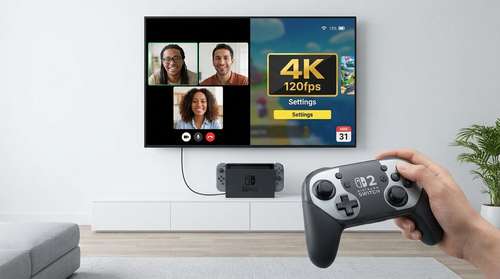
Beyond the social elements, getting your visual fidelity dialed in is a priority. The console boasts a beautiful 7.9-inch 1080p LCD screen natively, but the redesigned dock featuring a built-in cooling fan unleashes its true power on the big screen. To properly optimize Switch 2 4K 120fps settings, you need to configure both the console and your television.
First, ensure you are using an ultra-high-speed HDMI cable connected to an HDMI 2.1 port on your display. Head into the Switch 2 System Settings, scroll down to 'TV Output', and select the '4K Resolution' option. Next, toggle the '120Hz Refresh Rate' and enable HDR (High Dynamic Range). Games optimized for the hardware will immediately benefit from buttery-smooth frame rates and vibrant color contrast. Keep in mind that pushing maximum frames and resolution simultaneously requires games that explicitly support those advanced graphical parameters. If you experience input lag, check that your television is set to 'Game Mode' to perfectly match the console's rapid output.
By fine-tuning these visual configurations and securing your online access before the Tuesday cutoff, your setup will be fully prepared for the next wave of major software releases.