It has been nearly eight months since the Nintendo Switch 2 hit shelves in June 2025, and as the console cements its place in the living rooms and backpacks of millions, the initial honeymoon phase is shifting toward optimization. While early adopters were mesmerized by the 1080p screen and backward compatibility, the community is now uncovering the system's deeper layers. A specific "90% Charging Cap" setting has recently trended on social media as a critical tool for longevity, while solo players have found a way to slice seconds off game boot times. Whether you are a launch-day veteran or a newcomer, these Nintendo Switch 2 tips will help you get the most out of your hardware.
1. Enable the 'Stop Charging Around 90%' Cap
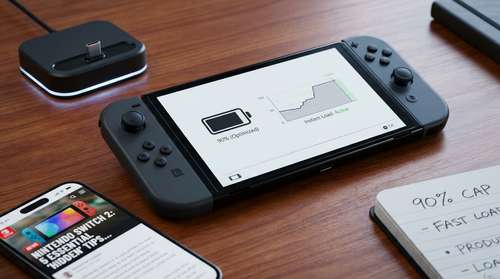
One of the most significant additions to the Switch 2 battery life guide is a feature that Nintendo quietly tucked away in the system menus. Unlike its predecessor, the Switch 2 includes a built-in battery preservation tool designed to combat long-term degradation. This is particularly vital for players who leave their console docked for weeks at a time.
Lithium-ion batteries suffer the most stress when held at 100% capacity for extended periods. To mitigate this, Nintendo added a toggle that limits the charge ceiling. Here is how to activate it:
- Go to System Settings from the Home Menu.
- Scroll down to the System tab.
- Enable Stop Charging Around 90%.
When active, your Switch 2 charging limit 90% safeguards the battery's chemical health. While this sacrifices a small amount of play time per session, it significantly extends the overall lifespan of the battery over years of ownership. For handheld-only trips, you can simply toggle it off to get that full charge back.
2. 'Skip User Selection' to Load Games Faster
If you are the only person using your console, the repetitive "Who is playing?" screen is an unnecessary hurdle. Recent discoveries by the speedrunning community have highlighted this as the single most effective way to load games faster on Switch 2. By removing this menu interaction, you can jump straight from the dashboard into gameplay.
To set this up, navigate to System Settings > Users. If you have multiple profiles that you don't use, you may need to delete them or unlink them to unlock the Skip Selection Screen option. Once enabled, clicking a game icon bypasses the profile check entirely. It sounds like a minor change, but over hundreds of sessions, those saved seconds add up to a much smoother, frictionless experience that feels more like a dedicated handheld and less like a shared family tablet.
3. Unlock 'Mouse Mode' for Precision Menu Navigation
Among the most surprising Nintendo Switch 2 hidden settings is the ability to turn your Joy-Con 2 into a mouse pointer. This wasn't heavily advertised at launch, but it has become a favorite feature for strategy game fans and users browsing the dense eShop interface. Unlike the Wii's IR pointer, this uses the upgraded motion sensors in the new controllers for higher precision.
To use it, detach a Joy-Con 2 and place it on its side on a flat surface, or simply hold it like a pointer in supported menus. A cursor will appear on-screen, allowing you to click and drag elements rapidly. This "Mouse Mode" is incredibly useful for organizing the new, larger game folders or typing on the virtual keyboard without smudging the screen with fingerprints. It is a prime example of Nintendo's hardware versatility that many users overlook.
4. Optimize Storage with SD Express for Peak Performance
To improve Switch 2 performance, particularly regarding load times, your choice of storage matters more than ever. The Switch 2 supports the new SD Express standard, which offers transfer speeds significantly faster than the UHS-I cards used in the original model. While your old cards work, they are likely bottling the system's speed.
If you are noticing texture pop-in or sluggish loading in massive open-world titles like Breath of the Wild: Enhanced Edition, check your storage. Moving high-performance games from a legacy SD card to the console's internal storage—or upgrading to an SD Express card—can drastically reduce wait times. Treat the internal drive as your "SSD tier" for the games you are currently playing to ensure the smoothest frame rates and fastest transitions.
5. Master the 'Quick Menu' and Bluetooth Audio
The final piece of this Nintendo Switch 2 user guide involves mastering the quality-of-life shortcuts that keep you in the game. Nintendo has revamped the Quick Menu (hold the Home button) to include instant Bluetooth audio switching. In the past, connecting headphones was a dive into deep settings menus. Now, you can toggle between your TV soundbar and wireless earbuds in two seconds without suspending your game.
Additionally, this menu now houses the Swap A/B Buttons toggle. For players migrating from Xbox or other platforms who struggle with Nintendo's button layout, you can now flip the confirmation and cancel buttons at a system level instantly. It’s a small tweak that solves years of muscle memory frustration.